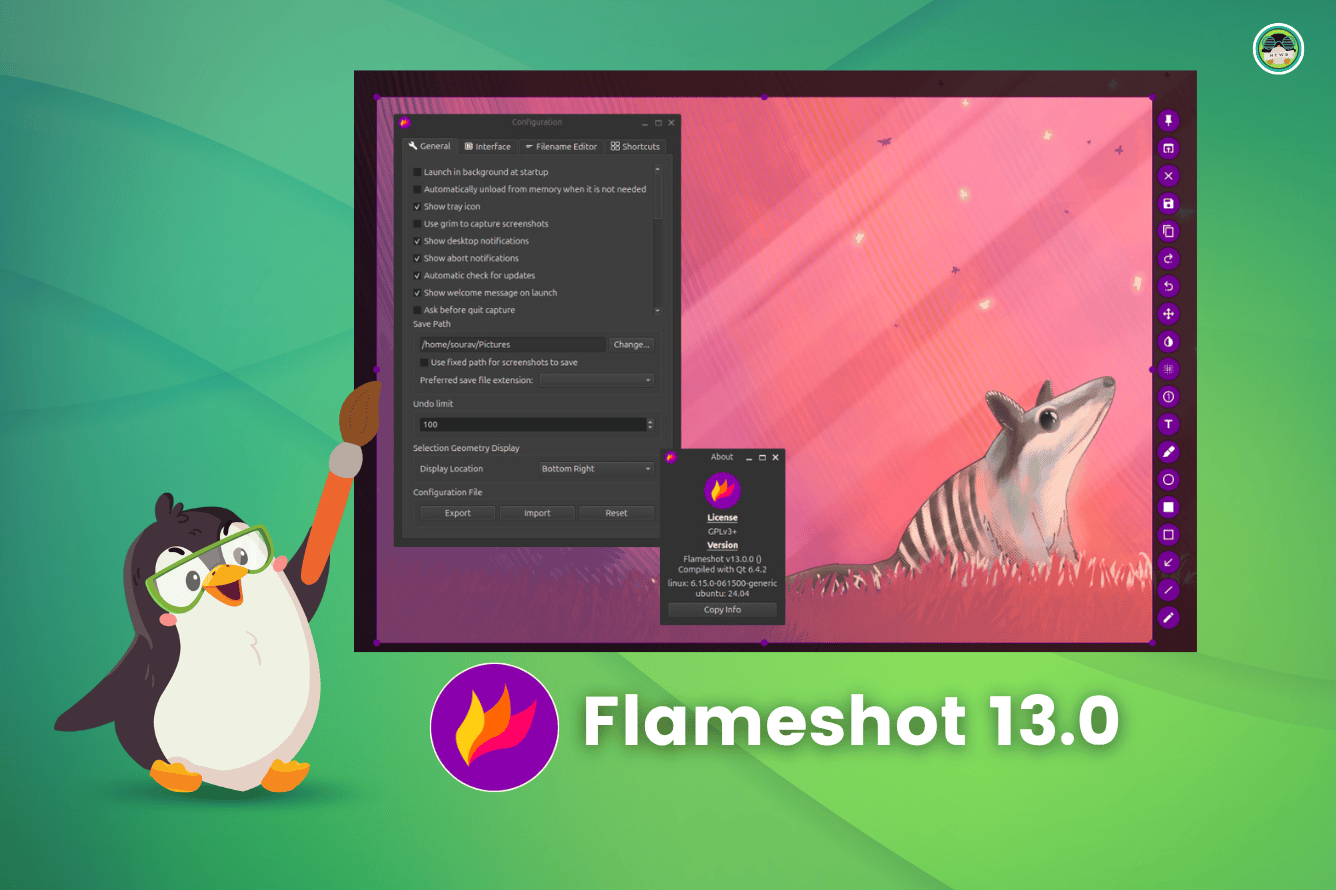
Linux’s Favorite Screenshot Tool Flameshot 13.0: A Triumphant Return After a 3-Year Hiatus
The open-source community rejoices as Flameshot, arguably the most beloved screenshot tool for Linux, makes a grand entrance back into the spotlight with the release of version 13.0. After a seemingly long three-year period of relative silence, this update brings a wealth of improvements, addressing long-standing user requests and solidifying Flameshot’s position as the go-to screenshot solution for Linux enthusiasts and professionals alike. At Tech Today, we’ve been eagerly anticipating this release, and we’re excited to delve into the details of what makes Flameshot 13.0 a significant upgrade.
What’s New in Flameshot 13.0: A Feature-Packed Update
Flameshot 13.0 is not just a minor iteration; it’s a substantial overhaul that introduces several new features and enhancements, aiming to provide a more refined and powerful user experience. This release focuses on usability, customization, and performance, ensuring Flameshot remains a top-tier screenshot utility.
Revamped User Interface and User Experience (UI/UX)
The most immediately noticeable change in Flameshot 13.0 is the redesigned user interface. The developers have paid close attention to user feedback, resulting in a cleaner, more intuitive interface that streamlines the screenshot annotation process.
Enhanced Toolbar Design
The toolbar, a central element in Flameshot’s workflow, has undergone a significant transformation. The icons are now crisper and more visually distinct, making it easier to identify and select the desired annotation tools. The layout has also been optimized to minimize clutter and improve overall usability. A notable addition is the ability to customize the toolbar, allowing users to arrange tools according to their personal preferences and workflow.
Improved Color Picker
The color picker has been completely revamped, offering a more comprehensive and intuitive color selection experience. Users can now choose colors using various methods, including a traditional color wheel, a color palette with predefined colors, and the ability to enter specific RGB or hexadecimal values. The new color picker also supports alpha transparency, enabling users to create semi-transparent annotations.
Advanced Annotation Tools
Flameshot has always been known for its robust set of annotation tools, and version 13.0 expands upon this foundation with several new and improved features.
Pin Tool
A welcome addition is the pin tool, which allows users to place persistent markers on the screenshot. These pins can be used to highlight specific areas of interest, add notes, or simply draw attention to important details. Each pin can be customized with different colors and sizes, providing a versatile way to annotate screenshots. The ability to drag and reposition pins after they have been placed further enhances their usability.
Blur Tool Enhancements
The blur tool, essential for redacting sensitive information, has been significantly improved. Users now have finer control over the blur intensity, allowing for more precise redaction. A new feature allows users to blur rectangular areas with a single click, making it faster and easier to obscure large portions of the screenshot.
Text Tool Improvements
The text tool now supports advanced formatting options, including the ability to change the font family, size, and color. Users can also add outlines and shadows to the text, making it more visible and readable against various backgrounds. The ability to rotate the text opens up new possibilities for creative annotation.
Workflow Improvements and Customization Options
Flameshot 13.0 introduces several improvements that streamline the screenshot workflow and provide users with greater control over the application’s behavior.
Configurable Save Locations
Users can now specify default save locations for their screenshots, eliminating the need to manually select a folder each time they capture an image. This feature is particularly useful for users who frequently take screenshots for specific projects or purposes. The ability to define custom file naming patterns further automates the saving process.
Customizable Keyboard Shortcuts
Flameshot 13.0 provides a comprehensive set of keyboard shortcuts for performing various actions, such as capturing a full-screen screenshot, selecting a region, or opening the annotation tool. Users can now customize these keyboard shortcuts to match their personal preferences and workflow. This level of customization allows users to optimize Flameshot for maximum efficiency.
D-Bus API Enhancements
The D-Bus API, which allows other applications to interact with Flameshot, has been significantly enhanced. This allows developers to integrate Flameshot into their own applications, providing seamless screenshot capture and annotation capabilities. The enhanced API also allows users to automate Flameshot tasks using scripts and command-line tools.
Performance Optimizations and Bug Fixes
In addition to the new features, Flameshot 13.0 includes a number of performance optimizations and bug fixes that improve the overall stability and responsiveness of the application.
Reduced Memory Footprint
The developers have made significant efforts to reduce Flameshot’s memory footprint, making it more efficient and less resource-intensive. This is particularly important for users with limited system resources or those who frequently run multiple applications simultaneously.
Improved Screenshot Capture Speed
The screenshot capture process has been optimized to be faster and more reliable. This ensures that screenshots are captured quickly and accurately, even on systems with high CPU load.
Numerous Bug Fixes
Flameshot 13.0 addresses a number of bugs and glitches that were present in previous versions. These bug fixes improve the overall stability and reliability of the application, providing a smoother and more enjoyable user experience.
Why Flameshot Remains the Best Screenshot Tool for Linux
Despite the abundance of screenshot tools available for Linux, Flameshot has consistently stood out as a top contender. Its combination of powerful features, intuitive user interface, and extensive customization options makes it the preferred choice for many users.
Open-Source and Community-Driven
Flameshot is an open-source project, meaning that its source code is freely available for anyone to view, modify, and distribute. This fosters a vibrant community of developers and users who contribute to the project’s ongoing development and improvement. The open-source nature of Flameshot ensures that it remains a free and reliable tool for years to come.
Cross-Platform Compatibility
While Flameshot is primarily known as a Linux screenshot tool, it is also available for Windows and macOS. This cross-platform compatibility makes it a versatile solution for users who work on multiple operating systems. The user experience is consistent across all platforms, ensuring a seamless transition for users who switch between different environments.
Lightweight and Efficient
Flameshot is designed to be lightweight and efficient, minimizing its impact on system resources. This makes it a suitable choice for users with older hardware or those who need to conserve system resources. Despite its small footprint, Flameshot offers a comprehensive set of features that rival those of more resource-intensive screenshot tools.
Regular Updates and Improvements
The Flameshot development team is committed to providing regular updates and improvements to the application. This ensures that Flameshot remains up-to-date with the latest technology and continues to meet the evolving needs of its users. The release of Flameshot 13.0 after a three-year hiatus demonstrates the team’s dedication to the project.
How to Install Flameshot 13.0
Installing Flameshot 13.0 is a straightforward process, and the specific steps may vary depending on your Linux distribution. Here’s a general overview of the installation methods:
Using Package Managers
The easiest way to install Flameshot is using your distribution’s package manager.
Debian/Ubuntu:
sudo apt update
sudo apt install flameshot
Fedora/CentOS/RHEL:
sudo dnf install flameshot
Arch Linux:
sudo pacman -S flameshot
Using Snap or Flatpak
Flameshot is also available as a Snap and Flatpak package.
Snap:
sudo snap install flameshot
Flatpak:
flatpak install flathub org.flameshot.Flameshot
Building from Source
For advanced users, building Flameshot from source allows for greater customization and control over the installation process. Instructions for building from source can be found on the Flameshot GitHub repository.
Getting Started with Flameshot 13.0
Once you’ve installed Flameshot, launching it is as simple as searching for it in your application menu or running the flameshot command in your terminal. Here are some basic commands that you can try:
flameshot gui: Takes a screenshot and opens the annotation tool.flameshot full: Takes a full-screen screenshot and saves it to the default location.flameshot screen -n <screen_number>: Takes a screenshot of a specific screen.flameshot --help: Displays a list of available command-line options.
Conclusion: A Bright Future for Flameshot
The release of Flameshot 13.0 marks a significant milestone in the history of this popular screenshot tool. The new features, improvements, and bug fixes make it a must-have application for Linux users. At Tech Today, we believe that Flameshot will continue to be a leading screenshot solution for years to come. The dedication of the development team and the active community support ensure that Flameshot remains a reliable, powerful, and user-friendly tool for capturing and annotating screenshots on Linux and other platforms. We encourage all Linux users to give Flameshot 13.0 a try and experience the difference for themselves. We are truly excited about the future of Flameshot and what it holds for the open-source community. Its triumphant return is a perfect example of what can be achieved when passion, dedication, and community come together.